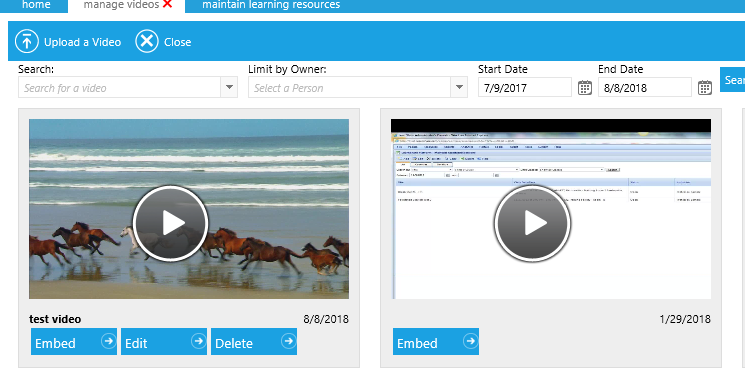
The LMS allows administrators to embed videos throughout the LMS though the RichText/HTML editor. This allows videos to be embedded on Portal Pages, in Course Descriptions, and in Assessment questions. The videos may sit on YouTube or another public video sharing site. However, if needed, videos can also be uploaded directly into the LMS. Once the video has been uploaded, it can then be embedded into the LMS where desired.
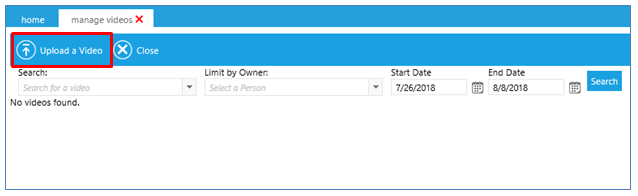
To upload a video go to Tools > Manage Videos in the Navigation Bar of the Administrator's Console. Click the Upload Video button in the top toolbar.
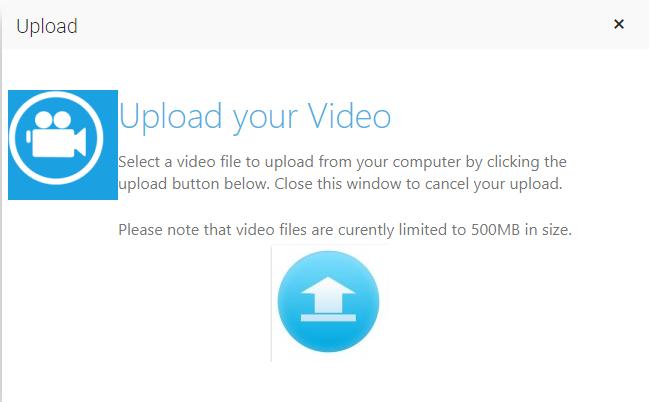
The upload tool will display. Navigate to the video on your computer and upload it.
If the video is larger than 500MB, it will need to be loaded through the FTP site. Contact the Support Team for specific information about how to access your FTP site.
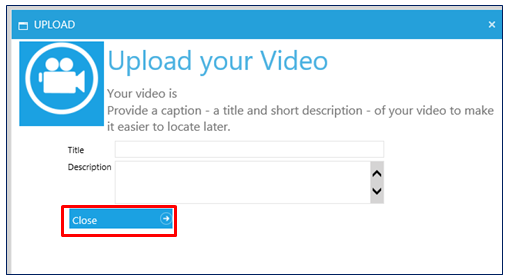
Once the upload is complete, the system will prompt you to enter a title and short description of the video. This information is to help administrators easily locate the video in the future. Enter the title and description, then click Close.
The thumbnail of your video should now be displayed. This video can now be embedded anywhere in the LMS that supports the Rich Text Editor.
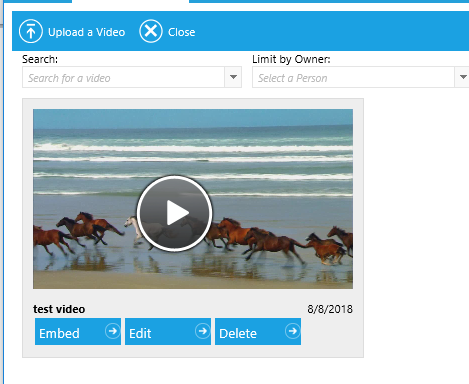
To embed an uploaded video, go to Tools > Manage Videos.
All videos that were uploaded within the selected time frame will display. If you do not see your desired video, change the date range or search by video title.
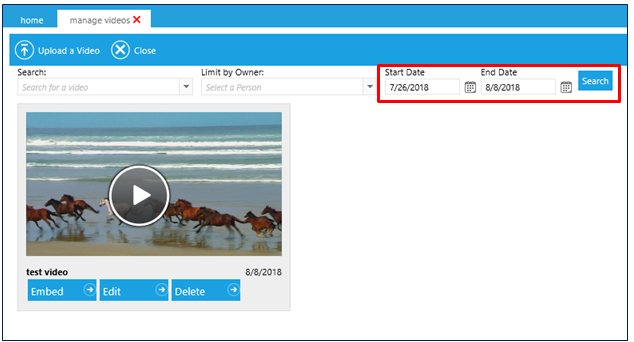
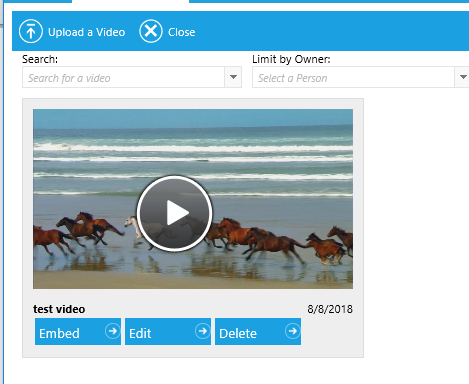
When you see the desired video, click the Embed button below the thumbnail.
The Embed and Link Options box will display.
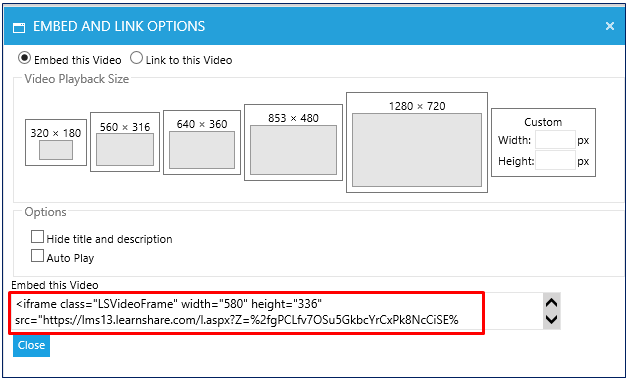
If desired, select the Video Playback size.
Copy the HTML code from the Embed this Video box.
Paste this HTML into the Rich Text Editor where you wish to embed the video. Remember to select the HTML tab at the bottom of the editing window first.
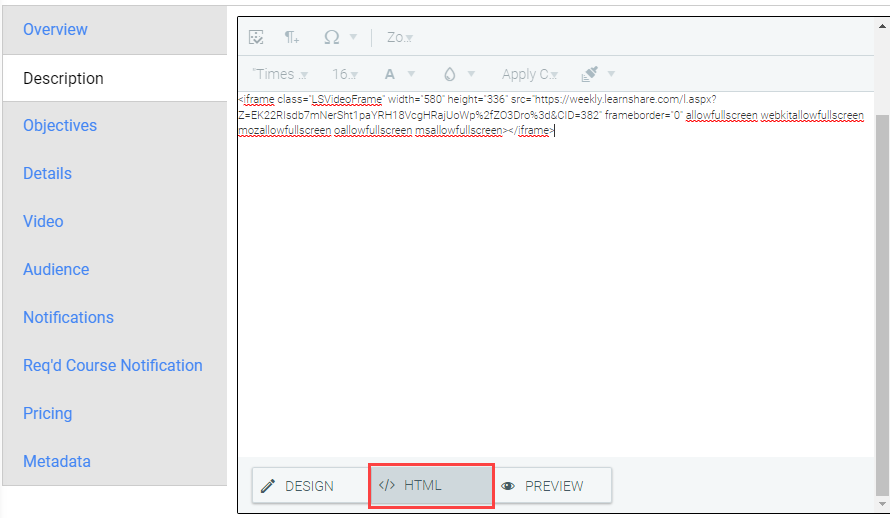
The Rich Text Editor is found on the Rich Text widget, announcements, assessment questions, and course descriptions. Each of these options support embedded video. When you have pasted in the HTML embed code, click the Design tab at the bottom of the editing window. You should see the thumbnail of the embedded video.
You can also get the link to your video, rather than embed it in playable form. This link can then be placed in an email or other objects that support hot spots.
Follow the steps above, and select the Link to this video radio button on the Embed and Link Options pop-up.
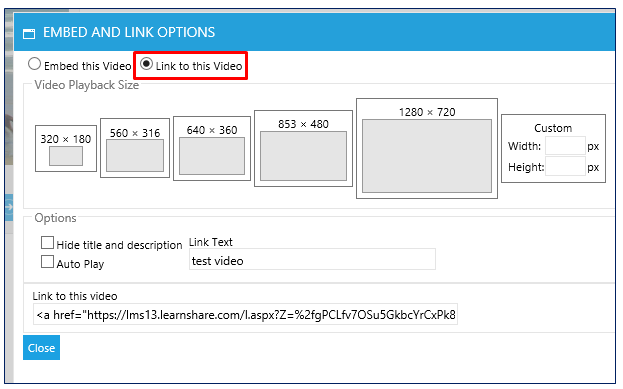
The link will be displayed at the bottom of the screen under the Link to this Video box. Copy the link and paste in the desired location.
Generally, we accept most major video format files.
|
Extension |
Container |
Unsupported Video Codecs |
|---|---|---|
|
.mp4 |
MPEG-4 |
n/a |
|
.mov .qt |
Apple QuickTime |
Apple Intermediate, Sony DVCAM, Panasonic DVCPro, Apple Animation |
|
.flv .f4v |
Adobe Flash |
SWF (vector animation files) |
|
.wmv .asf |
Windows Media 9 |
Microsoft Screen (MSS2), Microsoft Photo Story (WVP2), GoToMeeting (G2M3 & G2M4) |
|
.mpg .vob .m2v .mp2 |
MPEG-2 |
n/a |
|
.m4v |
Apple iTunes |
|
|
.avi |
A/V Interleave |
Panasonic DVCPro, Indeo3 (IV30), MJPEG, Microsoft Video 1 (MS-CRAM) |
|
.webm |
WebM |
n/a |
|
.ogv .ogg |
Ogg |
n/a |
|
.mxf |
MXF |
Panasonic DVCPro |
|
.mts |
AVCHD |
n/a |
|
.mkv |
Matroska |
n/a |
|
.ram .rm |
RealVideo |
Real G2 (RV20), Real |
There are limitations on the codecs that are used within the container. Proprietary codecs (i.e Webex and others) are not generally supported. A good rule of thumb -- if you need special software to play a video, then it's likely that the video will not convert correctly.
Your video will be converted at the resolution and quality in which it was uploaded. You can embed or link the video into various documents and email messages at whatever size is appropriate for the document. Users will always have the ability to play the video in full screen so that high resolution or high-definition video can be played at full size and quality.
The Manage Videos screen displays all videos that have been uploaded into the system, including videos that were loaded as Video Resources. If a video was loaded as a Video Resource, you will only see the option to Embed this video. If the video was uploaded directly through the Manage Videos screen, then you will also have the option to Edit the title or Delete it.